
The Ultimate Guide to Extending Android Watch Battery Life: Optimization Techniques and Best Practices
The evolution of wearable technology has been one of the most exciting developments in recent Android News. From the early days of bulky, square interfaces to the sleek, powerful devices we see today like the Google Pixel Watch series and the Samsung Galaxy Watch lineup, the capabilities of these devices have skyrocketed. However, as features multiply—adding LTE connectivity, continuous SpO2 monitoring, and high-brightness AMOLED displays—power consumption has become the Achilles’ heel of the smartwatch experience. There is nothing quite as frustrating as gearing up for an evening run only to find your wrist-worn companion in power-saving mode, or worse, completely dead.
While modern Android Phones have largely solved the “all-day battery” conundrum through massive 5000mAh cells and optimized chipsets, smartwatches are physically constrained by physics. You simply cannot fit a massive battery into a 40mm casing without making it unwearable. This limitation forces a reliance on software efficiency and user management. For enthusiasts of Android Gadgets, understanding the technical interplay between hardware capability and software optimization is key to unlocking multi-day battery life without turning a smartwatch into a “dumb” watch.
This comprehensive guide explores the technical underpinnings of Wear OS battery consumption, provides granular optimization strategies, and analyzes the future of low-power wearable architecture. Whether you are rocking the latest flagship or holding onto a classic, these insights will help you stop charging daily and start trusting your device to last.
Section 1: The Anatomy of Power Consumption in Wear OS
To effectively manage battery life, one must first understand where the energy goes. Unlike standard quartz watches that sip energy from a coin cell for years, an Android smartwatch is essentially a miniaturized smartphone strapped to your wrist. It runs a complex operating system (Wear OS), manages background processes, and constantly polls sensors.
The Display Dilemma: AMOLED and Refresh Rates
The single largest consumer of power on any smartwatch is the display. Most premium Android watches utilize AMOLED (Active-Matrix Organic Light-Emitting Diode) screens. The advantage of AMOLED is that black pixels are effectively “off,” consuming zero power. However, lighting up a full-color, high-resolution watch face at 1000 nits of brightness to combat direct sunlight requires a significant surge of current.
Furthermore, the refresh rate plays a critical role. Modern devices utilize LTPO (Low-Temperature Polycrystalline Oxide) displays that can dynamically drop the refresh rate from 60Hz down to 1Hz when the screen is idle (Always-On Display mode). While this technology saves battery compared to older screens, the display driver integrated circuit (DDIC) still draws power to maintain the image. Understanding this helps explain why the “Always-On Display” (AOD) is often the first feature users are advised to toggle off, though as we will discuss later, it is not the only culprit.
The Connectivity Tax: LTE vs. Bluetooth vs. Wi-Fi
Connectivity is the second pillar of battery drain. The radio hierarchy significantly impacts longevity:
- Bluetooth (Low Energy): This is the most efficient state. The watch acts as a slave device to your phone, mirroring notifications with minimal power usage.
- Wi-Fi: When Bluetooth disconnects, the watch searches for Wi-Fi. This radio requires more power to maintain a connection and transfer data, particularly during cloud syncs or app updates.
- LTE/4G: This is the battery killer. If you leave your phone behind and rely on the watch’s internal modem for calls and data, the device must constantly communicate with cell towers. In areas with poor signal, the modem amps up its power to maintain a connection, causing the battery to plummet—sometimes draining a full charge in under four hours.
Sensor Fusion and Background Processing
Modern Android Gadgets are health powerhouses. They utilize a photoplethysmogram (PPG) sensor for heart rate, accelerometers for step counting, gyroscopes for gesture detection, and GPS modules for location tracking. “Sensor fusion” is the software process of combining data from these sources. While individual sensors like the accelerometer are low power, the processor (CPU) must wake up to interpret this data. Continuous stress tracking, “Hey Google” detection, and automatic workout detection keep the processor in a higher power state more frequently, preventing the device from entering deep sleep.
Section 2: Comprehensive Optimization Strategies
Knowing the hardware limitations, we can now apply targeted software configurations to maximize efficiency. This goes beyond simple “power saving modes” and looks at granular settings available in the latest versions of Wear OS.
Mastering Display Settings
Optimizing the display doesn’t mean you have to stare at a blank screen. It requires a strategic approach to how and when pixels are lit.
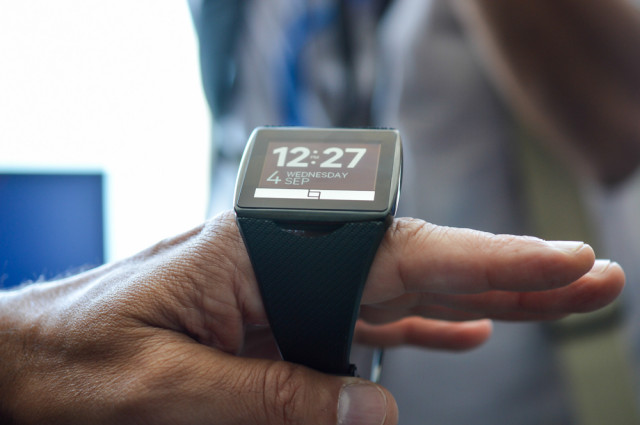
1. The Tilt-to-Wake vs. AOD Debate: Conventional wisdom suggests turning off the Always-On Display (AOD) saves the most power. However, for active users, “Tilt-to-Wake” can sometimes be worse. If you talk with your hands or type vigorously, the gyroscope may trigger the screen to wake hundreds of times an hour, ramping up the processor and lighting the screen fully. In contrast, a dimmed AOD with a low pixel count (mostly black watch face) running at 1Hz can sometimes be more efficient than constant accidental wakes. Best Practice: If you are sedentary, Tilt-to-Wake is fine. If you are active, consider AOD with “Tilt-to-Wake” disabled.
2. Watch Face Physics: Not all watch faces are created equal. A watch face with a white background and animated seconds hand forces the display to light every pixel and refresh 60 times a second. Switching to a minimal, black-background face without a seconds hand allows the screen to utilize the 1Hz low-power mode and keeps 90% of the OLED pixels turned off.
Taming Notifications and Haptics
Every time your wrist buzzes, a vibration motor spins up, and the screen likely activates. This is a two-fold battery drain.
Notification Filtering: In the companion app on your Android Phones, strictly filter which apps can send notifications to the watch. You do not need a buzz for every promotional email or Instagram like. Restricting notifications to “High Priority” items (calls, texts, calendar, security) can extend battery life by 15-20% daily.
Haptic Intensity: Many Android watches allow you to adjust vibration strength. Lowering this from “Strong” to “Normal” or “Light” reduces the mechanical energy required by the linear actuator inside the device.
Connectivity and App Management
Cloud Sync and Updates: By default, many watches attempt to update apps or sync music over Wi-Fi whenever it is available. Configure the Google Play Store on the watch to “Auto-update apps” only when charging. This prevents the heavy lifting of installation and data transfer from occurring while the device is on your wrist.
NFC and Gestures: If you do not use Google Wallet daily, or if you don’t use wrist gestures to scroll through cards, disable these features. The NFC radio constantly polling for a reader is a small but constant drain.
Section 3: The Health Tracking Trade-off
For many, the primary allure of Android News covering wearables is the advancement in health tech. However, health tracking is resource-intensive. Users must find a balance between data granularity and battery longevity.
GPS: The Power Hog
Global Positioning System (GPS) tracking is the most energy-intensive task a smartwatch performs. Tracking a run involves communicating with multiple satellites, calculating triangulation, and writing data points every second.
Real-World Scenario: If you are going for a 4-hour hike, standard GPS settings might kill your watch before you finish.
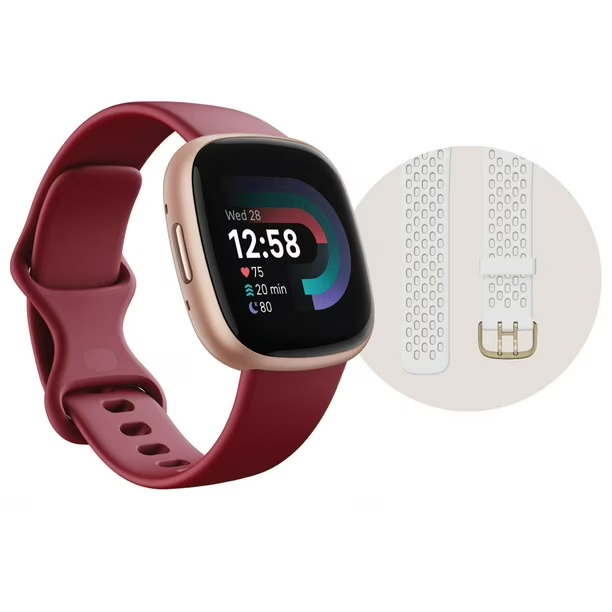
Solution: Look for settings to reduce GPS polling frequency. Some watches offer “Power Saving GPS” which pings satellites less frequently (e.g., every 10 seconds instead of every second) and uses algorithms to smooth out the path. Alternatively, if you have your phone with you, ensure the watch is using the phone’s GPS (tethered GPS) rather than its internal module.
Continuous Heart Rate and SpO2
Continuous heart rate monitoring (every second) keeps the PPG sensor active and the processor awake. Changing this setting to “Every 10 minutes” or “Manual only” can double battery life on some devices. Similarly, SpO2 (blood oxygen) tracking during sleep is a massive drain because the red and infrared LEDs must shine brightly through the skin all night. Unless you have a medical concern like sleep apnea that requires monitoring, consider disabling nightly SpO2 or limiting it to periodic checks.
“Hey Google” and Assistant Listening
Having the microphone constantly powered to listen for the wake word “Hey Google” prevents the audio subsystem from entering deep sleep. Disabling the “always listening” feature and opting to launch the Assistant via a long-press of a button is a significant power saver that rarely impacts usability.
Section 4: Hardware Implications and Future Technologies
While software tips are vital, the hardware architecture defines the ceiling of battery performance. Recent Android News has highlighted a shift in how manufacturers are approaching processor design to combat battery anxiety.
Dual-Chip Architecture
A significant innovation seen in recent Android Gadgets, such as the OnePlus Watch 2 and certain TicWatch models, is the “Dual-Engine” architecture. These devices contain two chipsets:
1. A powerful Snapdragon chip for heavy tasks (Maps, Apps, Calls).
2. A low-power co-processor (MCU) running a Real-Time Operating System (RTOS) for background tasks (Steps, Notifications, Time).
This hybrid approach allows the heavy Wear OS system to sleep for the vast majority of the day, handing off duties to the efficient co-processor. This technology has successfully pushed Wear OS battery life from 24 hours to nearly 100 hours in some cases. When shopping for a new device, investigating the processor architecture is just as important as the battery capacity (mAh).
Battery Health and Chemistry
Finally, the physical health of the Lithium-ion battery matters. Fast charging is a convenient feature found in the latest Pixel and Galaxy watches, allowing a 50% charge in 30 minutes. However, heat is the enemy of battery longevity.
Best Practice: Avoid leaving your watch on the charger for days at a time at 100%. If you store the watch, keep it at 50% charge. Furthermore, try to keep the battery between 20% and 80% for daily use to reduce chemical degradation over the years. Deep discharging (going to 0%) frequently can shorten the overall lifespan of the cell.
Conclusion
The narrative surrounding Android News and wearables often focuses on the flashy new features, but the user experience lives and dies by the battery. The dream of a smartwatch that lasts a week on a single charge while running full Wear OS is slowly becoming a reality thanks to dual-chip architectures, but we aren’t quite there yet for every device.
By understanding the mechanics of power consumption—from the physics of AMOLED displays to the drain of LTE radios—users can take control of their experience. It is not about turning off every feature that makes the watch “smart.” It is about intelligent management: using black watch faces, filtering unnecessary notifications, managing GPS accuracy, and leveraging the strengths of the hardware. With these optimizations, you can stop the daily panic of a dead battery and ensure your Android watch is ready for that midday workout, the late-night sleep tracking, and everything in between.