
Flashing Android 17 Beta: A Messy First Look
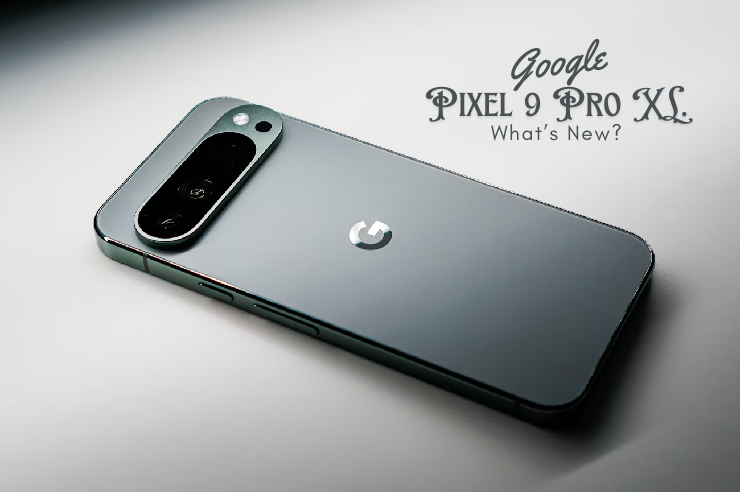
So there I was at 1:30 AM last Tuesday, staring at my Pixel 9 Pro XL stuck in a bootloop. I knew I shouldn’t have flashed the first Android 17 beta on the device I actually rely on for daily communication. But I did it anyway. Because I never learn.
It eventually booted after a forced hard reset. The setup screen looked exactly the same as last year. But internally, the system is doing some wild stuff with background processes that immediately broke half my workflow.
The Battery Drain Mystery
Let’s talk about the battery first. Everyone cares about the battery.
My first 24 hours were absolute garbage. I was losing 14.2% an hour just sitting at my desk. The phone was physically warm to the touch. I plugged it into my laptop, fired up Android Studio Ladybug 2024.2.1, and pulled the logs to see what was thrashing the CPU.
Turns out, the new “Aggressive Doze” API was constantly pinging the local AI core trying to categorize my incoming notifications. It was getting stuck in a loop because of a rogue weather widget I installed three years ago that hasn’t been updated since. I uninstalled the widget. Boom. Standby drain dropped to 3.1% per hour.
And if you’re installing this beta, check your legacy widgets immediately. The new OS does not play nice with poorly optimized background polling. As we covered in Android Hardware Is Getting Weird Again (And I Love It), the increased reliance on local AI processing can cause unexpected issues with existing apps and services.
A Massive Audio “Gotcha”
Here is a weird edge case nobody on the forums is talking about yet. If you use Spotify, Pocket Casts, or any background audio app, prepare to be incredibly annoyed.
Android 17 introduces a new memory-fencing feature for local LLM tasks. If the system decides it needs RAM to process a smart reply or summarize a long email locally, it aggressively kills background audio. Just completely nukes the process.
You’ll be walking the dog, listening to a podcast, and someone texts you. The music just stops. I spent three hours trying to figure out if my Bluetooth earbuds were dying or if the Spotify app was crashing. Nope. It’s the OS prioritizing text generation over your music. As we discussed in Local AI on Android: Why My S26 Ultra Needs a Fan Now, this increased AI processing power comes with trade-offs.
But you can go into Developer Options, scroll down to the new “AI Memory Management” section, and manually whitelist your media apps from the fencing toggle. Save yourself the headache and do this before you even leave the house.
Muscle Memory is Stubborn
The new notification shade UI. I hate it. Fight me.
They moved the quick settings toggles down to the bottom third of the screen. I get the ergonomic argument. Phones are massive glass slabs now. Stretching your thumb to the top of a 6.8-inch display is uncomfortable. It makes logical sense to put interactive elements where your thumb naturally rests.
But I still hate it.
I keep swiping down and hitting the brightness slider instead of my Wi-Fi toggle. I’ve turned my brightness up to blinding levels in a dark room at least four times this week.
Is the interface smoother? Probably. The animations are running at a locked 120hz without those tiny micro-stutters we occasionally saw in Android 16 when pulling down the shade rapidly. The physics of the swipe feel heavier, more deliberate. But it’s going to take me months to rewire my brain for this layout.
The Verdict So Far
Should you install it? If you only have one phone, absolutely not. It acts exactly like an early beta should. It’s unstable. My banking app crashes on launch, and the camera sometimes takes three seconds to open.
But if you have a spare device lying around, the local processing changes are fascinating to dig into. Just remember to whitelist your podcast app. I’m going back to bed.
Common questions
Why is my Pixel 9 Pro XL battery draining so fast on the Android 17 beta?
The Android 17 beta includes a new Aggressive Doze API that pings the local AI core to categorize notifications. Poorly optimized legacy apps, like outdated weather widgets, can trap this process in a loop, causing heavy CPU use and physical warmth. On a Pixel 9 Pro XL, this pushed standby drain to 14.2% per hour until the rogue widget was uninstalled, dropping drain to 3.1%.
Why does Spotify keep stopping on Android 17 beta?
Android 17 introduces memory-fencing for local LLM tasks. When the system needs RAM to generate smart replies or summarize emails on-device, it aggressively kills background audio processes like Spotify or Pocket Casts. The fix is in Developer Options under the new AI Memory Management section, where you can manually whitelist media apps from the fencing toggle before leaving the house.
Where did the quick settings toggles go in the Android 17 notification shade?
Google moved the quick settings toggles down to the bottom third of the screen in the Android 17 beta. The redesign targets one-handed use on massive 6.8-inch displays, placing interactive elements where the thumb naturally rests. The tradeoff is muscle memory pain: swiping down in the old top region now hits the brightness slider instead of toggles like Wi-Fi.
Should I install the Android 17 beta on my main phone?
Not if it’s your only device. The Android 17 beta behaves like an early beta should, with real instability. In testing on a Pixel 9 Pro XL, the banking app crashed on launch and the camera sometimes took three seconds to open. If you have a spare device, the local AI processing changes are interesting to explore, but daily-driver users should wait for a later build.